How to Scrape Any Website Without Code: AI Extraction Tutorial
 Thomas Shultz
AI Summary: This tutorial covers four no-code methods for extracting web data using AI, ranging from a 60-second quick pull to handling anti-bot-protected sites at scale, so marketers, analysts, and founders can turn any public page into structured data without writing code.
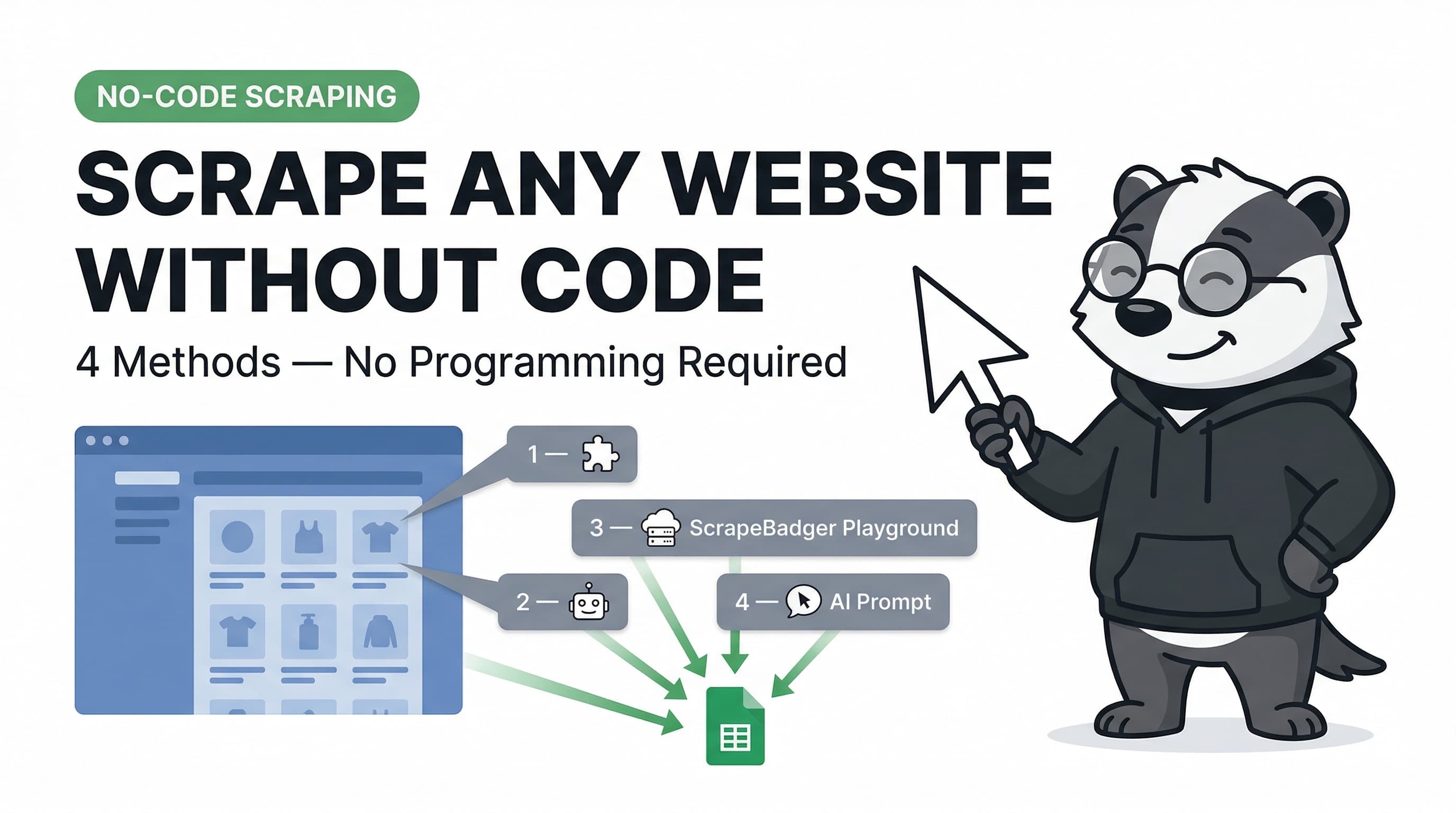
Three years ago, scraping a website meant writing Python, wrestling with BeautifulSoup, managing proxy rotation, and spending a weekend on Stack Overflow just to get a clean CSV. Today, you can describe what you want in plain English and have structured data sitting in a spreadsheet in under five minutes.
AI has fundamentally changed who can extract web data. Marketers, analysts, founders, and researchers — anyone who needs data from the web — can now do it without writing a single line of code.
This tutorial covers four methods, from the fastest (60 seconds) to the most powerful (handles anti-bot protected sites at scale). Pick the one that fits what you're trying to do.
What you'll be able to do after this guide:
Extract product prices, listings, and contact data from any public website
Set up automated monitoring that runs on a schedule
Export clean data directly to Google Sheets, CSV, or your CRM
Handle JavaScript-heavy sites, paginated results, and login-protected pages — without code
Before You Start: Identify What You Actually Need
This is the step most people skip, which leads to choosing the wrong tool and getting frustrated. Before you pick a method, answer these three questions:
1. Is the data on a public page or behind a login? Public pages (product listings, job boards, directories, news) — any method works. Login-required pages — you need a tool that can handle session authentication (covered in Method 3).
2. Do you need this once or regularly? One-off research grab → Method 1 or 2. Regular monitoring or pipeline → Method 3 or 4.
3. How many pages do you need to scrape? Under 50 pages → browser extension works fine. Hundreds or thousands → you need cloud automation.
Here is your quick routing table:
Your situation | Go to |
"I need data from one page, right now" | Method 1 — Instant Data Scraper |
"I need to train a robot to grab specific fields" | Method 2 — Browse AI |
"I need this to run daily on 500 pages" | Method 3 — ScrapeBadger no-code |
"The site keeps blocking me" | Method 4 — ScrapeBadger AI via Zapier |
Method 1 — Instant Extraction with a Chrome Extension (60 seconds)
For one-off grabs from a single page — a directory listing, a product grid, a search results page — a free Chrome extension is the fastest possible tool. No account, no setup, no learning curve.
Tool: Instant Data Scraper (free, Chrome/Edge)
When this works:
The data is in a table or repeating list structure
You need it once, not on a schedule
You don't need to paginate through multiple pages automatically
Step 1 — Install the extension
Search "Instant Data Scraper" in the Chrome Web Store. Add to Chrome. Done. No account needed.
Step 2 — Navigate to your target page
Go to the page with the data you want. A directory listing, Amazon search results, a LinkedIn company page, a news feed.
Step 3 — Click the extension icon
Click the Instant Data Scraper icon in your Chrome toolbar. It will automatically scan the page and highlight what it thinks is the primary data structure. You'll see a preview of the columns it detected.
Step 4 — Verify and adjust
Check the preview table. If it grabbed the wrong element, click "Try another table" to cycle through detected structures. The AI detects repeating patterns — product cards, list items, table rows — automatically.
Step 5 — Click "Crawl" or "Download CSV"
For a single page: hit "Download CSV" immediately. For paginated results: click "Crawl" and set a "Next Page" selector — the tool will automatically follow pagination.
What you get: A CSV file with all detected data columns, ready to open in Excel or Google Sheets.
Real-world example: You want a list of all job titles and companies from a LinkedIn search. Navigate to the search results, open Instant Data Scraper, confirm the columns (name, title, company), download CSV. Done in 90 seconds.
Where this breaks down:
JavaScript-rendered content that loads after scroll
Sites with anti-bot protection
Complex nested data structures
Any need for scheduling or automation
When you hit those walls, move to Method 2 or 3.
Method 2 — Train an AI Robot to Extract Specific Fields
When you need to extract specific named fields — not just "everything on the page" but "the price, the rating, and the seller name" — you train an AI robot by pointing and clicking once. It learns the pattern and can repeat it on thousands of pages.
Tool: Browse AI (free tier available)
When this works:
You know exactly which fields you want
You need to run this on many pages with the same structure
You want the output in a structured, named dataset (not just a raw CSV)
You want it to run automatically on a schedule
Step 1 — Create a free Browse AI account
Go to browse.ai and sign up. No credit card required for the free tier.
Step 2 — Click "Create a Robot"
From your dashboard, click "Create a Robot" and enter the URL of the page you want to scrape.
Step 3 — Train by clicking
Browse AI will open your target page inside their interface. Click on the first piece of data you want — for example, a product price. Browse AI asks you to name the field ("price"). Then click a second example. The AI now understands the pattern and will highlight all matching elements on the page.
Step 4 — Repeat for each field
Click each field type once (name, price, rating, URL). Browse AI builds a schema from your clicks. Preview the full extracted dataset before running.
Step 5 — Run and export
Hit "Run Robot". Browse AI extracts all matching records. Export to Google Sheets, CSV, or webhook. Set a schedule to run it daily/weekly automatically.
Real-world example: You want to monitor competitor product listings on an e-commerce site — tracking product name, price, and availability. Train once on one product card. Browse AI extracts all 200 products. Schedule it daily. Get an alert when any price changes.
Where this breaks down:
Sites with aggressive anti-bot protection (Cloudflare, Imperva) — Browse AI's success rate drops
Very high-volume scraping (tens of thousands of pages) — gets expensive quickly
Sites that require specific geographic IP addresses for accurate pricing
When you need to scale beyond Browse AI's limits or hit protected sites reliably, move to Method 3.
Method 3 — ScrapeBadger’s Web Scraping Playground (Production-Ready, Any Site)
When Browse AI gets blocked, or you need higher volume, or you need data from sites protected by Cloudflare or Imperva — this is where you use ScrapeBadger. The entry point is the Web Scraping Playground: a live, no-code interface where you paste a URL, configure your parameters, and get results in seconds. No code. No setup. No infrastructure.
When this works:
The site blocks simpler tools
You need geo-targeted data (different prices in different countries)
You need thousands of pages scraped reliably
You want to test a site before committing to a full pipeline
Step 1 — Create your ScrapeBadger account
Sign up for ScrapeBadger — free trial, no credit card required. You get free credits to test with immediately.
Step 2 — Paste your target URL into the Playground
Go to the Web Scraping Playground and paste the URL of the page you want to scrape into the input field. That is the only required step — everything else is optional.
Step 3 — Configure your parameters (and only pay for what you actually need)
Click the Parameters panel and you will see a set of toggles. This is where ScrapeBadger’s smart billing logic sets it apart from every other tool in this guide:
Parameter | What it does | Cost |
Render JavaScript | Fully renders JS-heavy pages before extraction | 9 credits |
Anti-bot bypass | Bypasses Cloudflare, Imperva, PerimeterX | Included in Stealth |
Escalate | Escalates through up to 23 bypass strategies | Up to 23 credits |
Screenshot | Returns a PNG screenshot of the rendered page | Included |
Video recording | Records the full browser session for debugging | +3 credits |
AI extraction | Extracts structured data using natural language | +23 credits |
Proxy country | Routes through a specific country’s residential IPs | Included |
The key thing to understand about billing: You only pay for what the system actually uses. If you enable JavaScript rendering and anti-bot bypass but ScrapeBadger can retrieve the page without them, you will not be charged for those features. The system tries the cheapest path first and only escalates — and charges — when it genuinely needs to. Failed requests are never charged.
Step 4 — Choose your output format
Use the Format dropdown to select HTML, JSON, or Markdown. For data pipelines, JSON is cleanest. For feeding into AI tools, Markdown works well.
Step 5 — Hit "Start Scraping" and review the result
ScrapeBadger runs the request live and returns the result in the Playground. The credit cost shown before you run is the maximum — you will often pay less. Review the output, adjust parameters if needed, and re-run.
Step 6 — Get the code or scale up
Once you are happy with the result, click “Get code” to export the exact API call as Python, Node.js, or cURL — ready to drop into your pipeline. For bulk scraping, upload a list of URLs and ScrapeBadger handles concurrency, retries, and rate limiting automatically.
Real-world example: You need daily pricing from a real estate portal like Rightmove for 500 postcode searches. Paste one search URL into the Playground, enable JavaScript rendering, confirm the output looks right. Click “Get code”, drop it into your automation, upload 500 URLs, set a daily schedule. Get a Google Sheet updated every morning. See our guide to scraping Zillow, Redfin & Rightmove for more details.
The ScrapeBadger difference from Browse AI:
Feature | Browse AI | ScrapeBadger |
Anti-bot handling | Basic | Full (Imperva, Cloudflare, PerimeterX) |
Volume | Low-medium | High (unlimited) |
Geo-targeting | Limited | ✅ All countries |
Failed request billing | Charged | Never charged |
Smart cost optimisation | ✗ | ✅ Only charges for what is used |
Best for | Simple sites, monitoring | Protected sites, production scale |
Method 4 — Describe What You Want in Plain English (AI Prompt Extraction)
The newest frontier of no-code scraping — you describe the data you want in a sentence, and the AI figures out what to extract. No clicking, no schema setup, no field configuration. Just natural language.
Two tools that do this:
Tool A: Thunderbit Chrome Extension
Open any webpage, click the extension, and it auto-suggests fields based on the page structure. Approve, adjust with natural language ("also add the seller rating"), and extract.
Practical workflow:
Navigate to your target page
Click Thunderbit in your Chrome toolbar
Review AI-suggested fields — approve or describe changes in plain English
Click "Scrape" — clean structured data in seconds
Export to Google Sheets, Airtable, CSV, or clipboard
Tool B: ScrapeBadger AI Extraction
Rather than clicking to define fields or building a schema, you enable the AI extraction toggle in the Playground and describe what you want in plain English. That’s it.
In the Parameters panel, flip the AI extraction toggle on (+23 credits). Then in the prompt field, type something like:
“Extract all product listings from this page — I need the product name, current price, original price, discount percentage, rating score, number of reviews, and whether it ships free.”
ScrapeBadger renders the page (with JavaScript if needed, anti-bot bypass if required), interprets your natural language description, maps it to the actual page structure, and returns clean JSON with exactly the fields you described. No clicking. No schema setup. No XPath.
The +23 credit cost for AI extraction only applies when the AI layer is actually invoked. If you’ve also enabled JavaScript rendering or anti-bot bypass, the same smart billing rule applies — you only pay for the features the system actually needed to use to get you the data.
Real-world example: You’re a market researcher and you want to extract speaker bios, talk titles, and company names from a conference website. Paste the URL into the Playground, enable AI extraction, type: “Get every speaker’s name, their job title, company name, and talk title.” Hit Start Scraping. Done. No configuration, no clicking, no schema.
Where AI extraction has limits:
Very unstructured pages (forums, long-form articles) where the AI needs more context to identify repeating fields
Sites where visually identical fields have different semantic meaning — you may need to be more specific in your prompt
High-precision pipelines where you need to define edge cases explicitly
For these cases, use AI extraction for the first pass to get a working schema fast, then refine individual fields using ScrapeBadger’s field editor before scaling up.
How to Handle the Most Common Roadblocks
"The site shows a CAPTCHA". Most modern no-code tools handle CAPTCHAs automatically — Browse AI, Thunderbit, and ScrapeBadger all have built-in CAPTCHA solving. If you're using Instant Data Scraper and hitting a CAPTCHA, you need to upgrade to a cloud tool.
"I'm getting a 403 Forbidden error". You've hit rate limiting or IP-based blocking. Tools running in your browser (extensions) use your own IP — easy to block. Switch to a cloud-based tool like ScrapeBadger that routes requests through rotating residential proxies. You'll never see a block again.
"The data loads after I scroll — the extension doesn't capture it". That's infinite scroll or lazy-loaded content. Chrome extensions can't always trigger JavaScript-based content loading. Use Browse AI's "interact" feature to simulate scrolling, or use ScrapeBadger's JavaScript rendering mode which fully renders the page before extraction.
"I need data from behind a login". Browse AI supports login-based scraping — you can train your robot to log in first using your credentials. Store credentials in Browse AI's secure vault. For more sensitive login workflows, ScrapeBadger's session management handles authenticated extraction. See our guide to scraping APIs for more advanced authentication patterns.
"The site's layout changed and my robot broke". This is the most common frustration with scraping tools. Browse AI has AI-powered layout adaptation that detects changes and updates automatically. ScrapeBadger's extraction engine uses semantic understanding rather than brittle CSS selectors, so minor layout changes don't break your pipeline.
What to Do With Your Scraped Data
Google Sheets — for analysis and sharing. Every tool in this guide can export to Google Sheets natively. Browse AI and ScrapeBadger both support live-updating Sheets that refresh on your schedule. Your team sees fresh data without anyone running a manual export.
Zapier / Make — for workflow automation. Connect your scraper to any app in your stack. Practical examples: scraped leads → CRM, scraped prices → Slack alert when threshold crossed, scraped job postings → Notion database, scraped news → email digest. No code required end-to-end.
Airtable — for structured databases. If your scraped data needs filtering, tagging, or collaboration, push it to Airtable. Browse AI and ScrapeBadger both have native Airtable integrations.
CSV / JSON — for analysis or import. Every tool exports CSV. JSON is available from ScrapeBadger for structured pipeline ingestion into analytics tools, databases, or custom applications.
Tip: Don't download-and-forget. The real value of scraped data is in its freshness. Set up a scheduled run, connect it to your delivery destination, and treat it as a live feed rather than a one-time export.
Frequently Asked Questions
Q: Can I really scrape any website without code?
A: Yes. Modern AI scraping tools like ScrapeBadger and Browse AI handle the technical complexity (proxies, JavaScript rendering, anti-bot bypass) behind a visual interface. You just point, click, or describe what you want in plain English.
Q: Is no-code web scraping legal?
A: Generally, scraping publicly available data is lawful (e.g., hiQ v. LinkedIn). However, extracting private user data, bypassing authentication, or violating specific Terms of Service carries legal risk. Always review the site's policies.
Q: What's the best free no-code scraping tool?
A: For a single page, the Instant Data Scraper Chrome extension is the fastest free tool. For scheduled monitoring, Browse AI offers a generous free tier. For protected sites, ScrapeBadger offers a free trial.
Q: What happens when a website blocks my scraper?
A: Browser extensions get blocked easily because they use your local IP address. To bypass blocks, switch to a cloud-based scraper like ScrapeBadger that uses rotating residential proxies and TLS fingerprinting to mimic real human traffic.
Q: Can I scrape data behind a login without coding?
A: Yes. Tools like Browse AI allow you to record a login sequence (entering username and password) before extracting data. The tool securely stores your credentials and replays the login step each time it runs.
Q: How do I export scraped data to Google Sheets automatically?
A: Most cloud scrapers have native Google Sheets integrations. You connect your Google account, select a destination spreadsheet, and the scraper will append new rows automatically every time it runs on its schedule.
Q: Do AI scrapers work on JavaScript-heavy sites?
A: Yes, but only if they have a rendering engine. Chrome extensions struggle with lazy-loaded content. Cloud tools like ScrapeBadger spin up headless browsers to fully render JavaScript before extracting the data.
Q: What's the difference between a Chrome extension scraper and a cloud scraper?
A: Chrome extensions run on your computer, use your IP address, and only work while your browser is open. Cloud scrapers run on remote servers, use rotating proxies to avoid blocks, and can run on automated schedules 24/7.
Conclusion
You don't need to write Python, manage proxies, or understand HTML to extract data from the web in 2026. The tools covered in this guide handle every piece of the technical complexity — anti-bot bypass, JavaScript rendering, pagination, scheduling, and clean data delivery.
The progression to remember: Browser extension → AI robot training → Cloud API scraper → Natural language extraction. Each step up handles more complexity and scales to more volume.
Start with Instant Data Scraper for your first test. Graduate to ScrapeBadger when you need reliability, protected sites, or production scale.
Extract your first dataset in the next five minutes. Start ScrapeBadger free — no credit card, no code required.

Written by
Thomas Shultz
Thomas Shultz is the Head of Data at ScrapeBadger, working on public web data, scraping infrastructure, and data reliability. He writes about real-world scraping, data pipelines, and turning unstructured web data into usable signals. ScrapeBadger is a web scraping API platform specialising in Twitter/X, Reddit and Google data, with dedicated scrapers also covering TikTok, YouTube, LinkedIn, Amazon, eBay, Zillow and 40+ more: with built-in anti-bot bypass and an MCP server for AI agents.
Ready to get started?
Join thousands of developers using ScrapeBadger for their data needs.