How to Export Tweets to CSV Using Python
 Thomas Shultz
AI Summary: This guide builds a Python script that searches Twitter by keyword and exports clean CSV, handling the parts naive tutorials skip: pagination gaps, inconsistent schemas, deduplication by ID, and atomic writes so re-runs never corrupt or overwrite prior data.
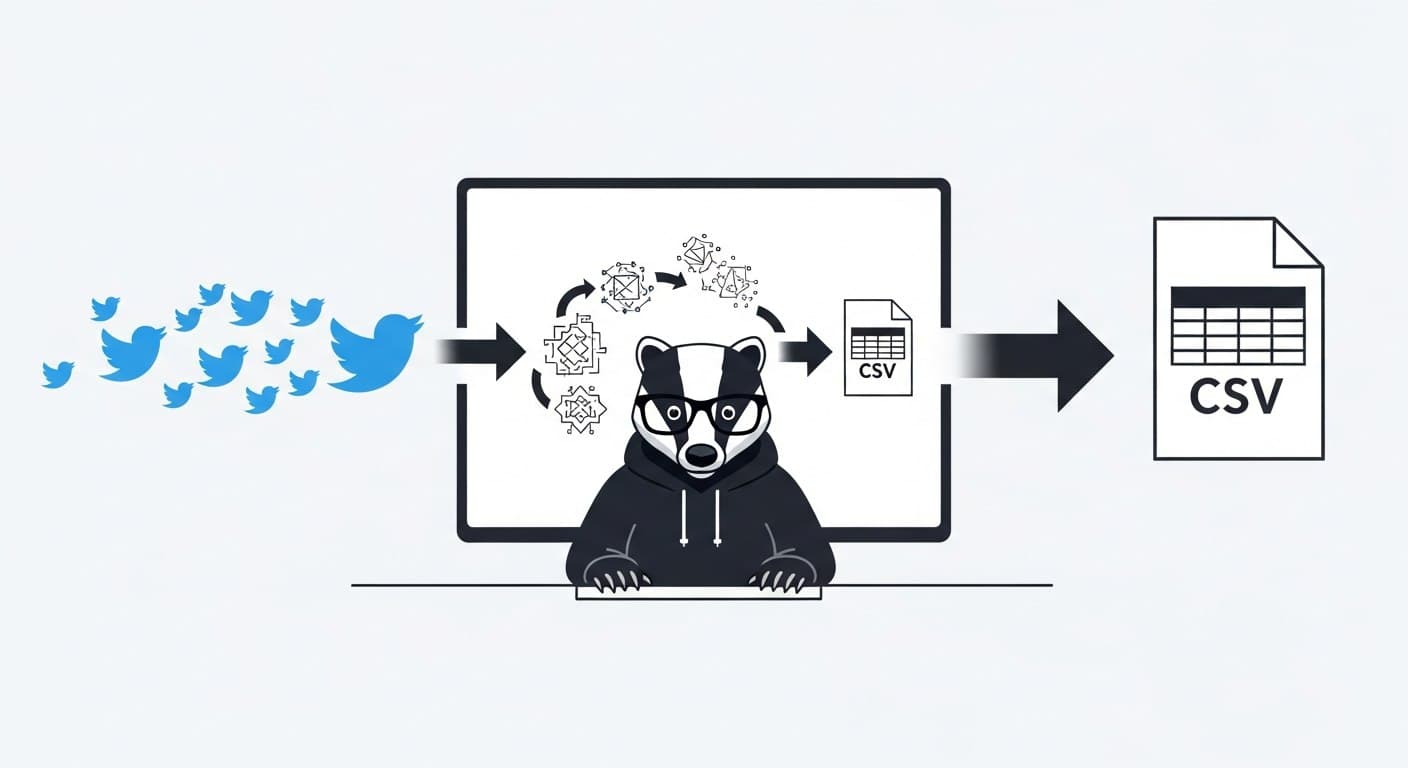
Most tutorials on this topic show you how to get a few tweets into a file. They skip the parts that matter: what happens when you need 5,000 rows, when fields are missing, when the same tweet shows up twice, or when your script runs again tomorrow and overwrites yesterday's data.
This guide covers all of it. By the end, you'll have a Python script that searches Twitter by keyword, paginates through results, normalizes each tweet into a consistent schema, deduplicates by ID, and writes a clean CSV — atomically, so partial writes don't corrupt your output.
Why Exporting Tweets to CSV Is Harder Than It Looks
The naive version is three lines: call an API, loop over results, write rows. That works exactly once.
The real problems show up when you try to run the same script tomorrow, increase the volume, or hand the CSV off to someone who expects consistent columns. The failure modes are predictable:
Pagination gaps. Twitter search returns results in batches. If you don't paginate, you get a partial dataset that looks complete. Nothing crashes. You just quietly miss half the tweets.
Schema inconsistency. Fields like
public_metrics,user, andcreated_atcan be missing, null, or nested differently across tweets. If your code assumes a fixed structure, it will either crash or write malformed rows.Duplicates. Overlapping pages and re-runs create duplicate rows. Without deduplication, your downstream analysis is wrong before it starts.
Partial writes. If the script fails mid-run, you get a half-written CSV. The next run either overwrites it or appends garbage.
Each of these is solvable. The key is treating CSV export as a small pipeline — not a one-off script.
What We're Building
A Python script that:
Takes a keyword or query as input
Calls the ScrapeBadger Twitter search API with pagination
Normalizes each tweet into a flat, stable schema
Deduplicates by tweet ID
Writes to CSV atomically (temp file → rename)
The output is a file you can open in Excel, load into Pandas, import into a database, or hand to a non-technical analyst without needing to explain anything.
Step 1: Set Up Your Environment
Keep this project isolated so dependencies don't bleed into other scripts.
mkdir tweet-csv-export
cd tweet-csv-export
python -m venv .venv
source .venv/bin/activate  # macOS/Linux
# .venv\Scripts\activate   # Windows
Install dependencies:
pip install requests
pip freeze > requirements.txt
Set your API key as an environment variable. Never hardcode it:
export SCRAPEBADGER_API_KEY="sb_live_xxxxxxxxxxxxxxxxxxxxxxxxxxxxxxxx"
Windows (PowerShell):
$env:SCRAPEBADGER_API_KEY="sb_live_xxxxxxxxxxxxxxxxxxxxxxxxxxxxxxxx"
Quick sanity check:
python -c "import os; print('ok' if os.getenv('SCRAPEBADGER_API_KEY') else 'MISSING')"
Create the output folder:
mkdir -p output
Step 2: Understand the Schema Before You Write Code
Before writing a single row, decide exactly what columns the CSV will have. This schema is a contract. Every run must produce the same columns in the same order, with safe defaults when fields are missing.
The schema I use for keyword exports:
Column | Source | Default if missing |
|---|---|---|
|
|
|
|
|
|
|
|
|
|
|
|
|
|
|
|
|
|
|
|
|
Keep it narrow at first. You can always add columns. Removing them breaks downstream consumers.
Step 3: Fetch Tweets with Pagination
The ScrapeBadger advanced search endpoint is GET /v1/twitter/tweets/advanced_search. It supports keyword queries, advanced operators like from:username, and filtering by type (Top, Latest, Media).
Results are paginated. Each response includes a cursor for the next page. You loop until you hit your item limit or run out of pages.
import os
import time
import requests

API_KEY = os.getenv("SCRAPEBADGER_API_KEY")
if not API_KEY:
    raise RuntimeError("Missing SCRAPEBADGER_API_KEY")

HEADERS = {"x-api-key": API_KEY}
BASE_URL = "https://api.scrapebadger.com/v1/twitter/tweets/advanced_search"

def fetch_all_tweets(query: str, max_items: int = 500, result_type: str = "Latest") -> list[dict]:
    """
    Paginates through search results and returns a flat list of raw tweet dicts.
    Stops when max_items is reached or no more pages are available.
    """
    collected = []
    cursor = None

    while len(collected) < max_items:
        params = {"query": query, "type": result_type}
        if cursor:
            params["cursor"] = cursor

        response = requests.get(BASE_URL, headers=HEADERS, params=params, timeout=30)

        # Handle common auth/credit errors
        if response.status_code == 401:
            raise RuntimeError("Invalid or missing API key")
        if response.status_code == 402:
            raise RuntimeError("Insufficient credits")
        response.raise_for_status()

        data = response.json()
        tweets = data.get("data") or []

        if not tweets:
            break  # No more results

        collected.extend(tweets)

        # Respect rate limit: 180 requests / 15 minutes
        cursor = data.get("next_cursor")
        if not cursor:
            break

        time.sleep(0.5)  # Polite pause between pages

    return collected[:max_items]
The time.sleep(0.5) is a polite buffer between pages. The ScrapeBadger API allows 180 requests per 15 minutes on tweet endpoints. For most exports, you won't hit that limit, but the sleep adds stability on larger jobs.
Step 4: Normalize and Deduplicate
Raw tweet payloads are good for APIs. They're annoying for spreadsheets. Normalization flattens nested fields into a stable, flat dictionary. Deduplication ensures each tweet ID appears exactly once.
def normalize(tweet: dict) -> dict:
    """
    Flatten a raw tweet payload into a stable, flat schema.
    All fields have safe defaults — this function should never raise.
    """
    metrics = tweet.get("public_metrics") or {}
    user = tweet.get("user") or {}

    return {
        "tweet_id":     str(tweet.get("id") or ""),
        "created_at":   str(tweet.get("created_at") or ""),
        "username":     str(user.get("username") or ""),
        "text":         str(tweet.get("text") or "").replace("\n", " "),
        "like_count":   int(metrics.get("like_count") or 0),
        "retweet_count": int(metrics.get("retweet_count") or 0),
        "reply_count":  int(metrics.get("reply_count") or 0),
    }
The replace("\n", " ") on the text field matters. Newlines inside tweet text will break CSV parsers that aren't expecting them. Remove or replace them before writing.
Step 5: Write to CSV Atomically
Atomic writes prevent partial CSVs. The pattern: write to a .tmp file first, then rename it to the final path. If the script crashes mid-write, the original file is untouched.
import csv
import os

CSV_COLUMNS = [
    "tweet_id", "created_at", "username", "text",
    "like_count", "retweet_count", "reply_count",
]

def export_to_csv(raw_tweets: list[dict], out_path: str) -> int:
    """
    Normalizes, deduplicates, and writes tweets to CSV.
    Returns the count of rows written.
    """
    seen_ids: set[str] = set()
    rows = []

    for raw in raw_tweets:
        row = normalize(raw)

        if not row["tweet_id"]:
            continue  # Skip tweets with no ID

        if row["tweet_id"] in seen_ids:
            continue  # Skip duplicates

        seen_ids.add(row["tweet_id"])
        rows.append(row)

    tmp_path = out_path + ".tmp"
    with open(tmp_path, "w", newline="", encoding="utf-8") as f:
        writer = csv.DictWriter(f, fieldnames=CSV_COLUMNS)
        writer.writeheader()
        writer.writerows(rows)

    os.replace(tmp_path, out_path)  # Atomic rename
    return len(rows)
Step 6: Wire It Together
import sys

def main(query: str, max_items: int = 500, out_path: str = "output/tweets.csv"):
    print(f"Fetching up to {max_items} tweets for query: '{query}'")
    raw_tweets = fetch_all_tweets(query, max_items=max_items)
    print(f"Fetched {len(raw_tweets)} raw tweets")

    count = export_to_csv(raw_tweets, out_path)
    print(f"Wrote {count} unique tweets to {out_path}")

if __name__ == "__main__":
    if len(sys.argv) < 2:
        print("Usage: python export_tweets.py <query> [max_items]")
        sys.exit(1)

    keyword = sys.argv[1]
    limit = int(sys.argv[2]) if len(sys.argv) > 2 else 500
    main(keyword, max_items=limit)
Run it:
python export_tweets.py "python scraping" 1000
Expected output:
Fetching up to 1000 tweets for query: 'python scraping'
Fetched 1000 raw tweets
Wrote 987 unique tweets to output/tweets.csv
The difference between 1000 fetched and 987 written is duplicates dropped — which is exactly what you want.
Exporting a Specific User's Tweets
The same pipeline works for a specific account. Use the from:username operator with the advanced search endpoint:
main("from:elonmusk", max_items=200, out_path="output/elon_tweets.csv")
Note on shadow-bans: If
from:usernamereturns few or no results for an account you know is active, that account may be shadow-banned. You can verify athttps://x.com/search?q=from%3AUSERNAME&src=typed_query&f=live.
Batch Exporting by Tweet ID
If you already have a list of tweet IDs (from a prior collection job, or from another dataset), the batch tweet endpoint — GET /v1/twitter/tweets/ — lets you fetch multiple tweets in a single request. It's more efficient than calling the single-tweet endpoint GET /v1/twitter/tweets/tweet/{id} in a loop.
This is useful for enrichment workflows: collect IDs first, then pull full metadata for all of them in one pass.
What Good Output Looks Like
After a successful run, verify:
Stable headers. Same column names and order every run.
No empty
tweet_idvalues. If you see blank IDs, something went wrong upstream.No duplicate
tweet_idvalues. Runsort tweet_id | uniq -dto check.No broken encoding. Open in Excel or a hex editor if you're working with non-Latin characters.
If you're loading into Pandas later:
import pandas as pd
df = pd.read_csv("output/tweets.csv", dtype={"tweet_id": str})
print(df.shape)
print(df["tweet_id"].nunique())  # Should match row count
Treat tweet_id as a string when reading. Pandas will silently truncate large integer IDs if you let it infer the type.
Common Failure Modes
Symptom | Likely Cause | Fix |
|---|---|---|
CSV has only headers | Query returned no results | Broaden the query, check auth |
Duplicate rows | Pagination overlap or re-run | Dedupe by |
Partial/corrupt CSV | Script crashed mid-write | Use atomic write pattern (tmp → rename) |
Missing fields in rows | Null nested fields in API response | Use |
| Invalid API key | Verify |
| Credits exhausted | Check credit balance in dashboard |
Text breaks CSV formatting | Newlines in tweet text | Strip or replace |
Scaling Up: When to Move Beyond CSV
CSV works well up to a few hundred thousand rows. Past that, you'll want to consider:
SQLite with upsert by
tweet_id. Same deduplication logic, but persistent across runs without loading everything into memory.PostgreSQL if you need concurrent access or complex queries.
Incremental checkpointing. Store the last-seen tweet ID and use it as a
since_idparameter on the next run, so you only collect new tweets instead of re-fetching everything.
If you're building something more continuous — monitoring a topic over weeks rather than one-off exports — the architecture in How to Build a Real-Time Twitter Monitoring Pipeline covers the incremental approach in detail.
FAQ
How do I export tweets to CSV in Python?
Call a Twitter search API (like ScrapeBadger's advanced search endpoint), paginate through results, flatten each tweet into a consistent row schema using a normalize() function, deduplicate by tweet_id, and write to a CSV file using Python's built-in csv.DictWriter. The key is writing to a .tmp file first and renaming atomically so you don't end up with partial output if the script fails mid-run.
Why do I get duplicate tweets in my CSV?
Pagination responses can overlap — the same tweet can appear on page 3 and page 4 of a result set. Deduplicate by treating tweet_id as a primary key and using a seen_ids set in memory. For multi-run jobs, persist seen IDs in a database or checkpoint file so re-runs don't reintroduce duplicates.
How many tweets can I export in one run?
That depends on your API rate limits and how you scope the job. The ScrapeBadger Twitter endpoints allow 180 requests per 15 minutes, and each request returns a page of results. For most one-off exports, a limit of 500–2,000 tweets per run is practical. For larger recurring jobs, run smaller batches on a schedule rather than one giant unbounded pull.
Can I export tweets from a specific user to CSV?
Yes. Use the from:username operator in the query parameter: query=from:elonmusk. The same pagination and normalization logic applies. If the query returns fewer results than expected for an active account, check whether that account is shadow-banned by searching `https://x.com/search?q=from%3AUSERNAME&

Written by
Thomas Shultz
Thomas Shultz is the Head of Data at ScrapeBadger, working on public web data, scraping infrastructure, and data reliability. He writes about real-world scraping, data pipelines, and turning unstructured web data into usable signals. ScrapeBadger is a web scraping API platform specialising in Twitter/X, Reddit and Google data, with dedicated scrapers also covering TikTok, YouTube, LinkedIn, Amazon, eBay, Zillow and 40+ more: with built-in anti-bot bypass and an MCP server for AI agents.
Ready to get started?
Join thousands of developers using ScrapeBadger for their data needs.